
Setting up Playwright with TypeScript from scratch
TestlandFebruary 13, 2026Set up Playwright with TypeScript step by step. Covers project creation, configuration, writing your first test, and adding GitHub Actions CI integration.
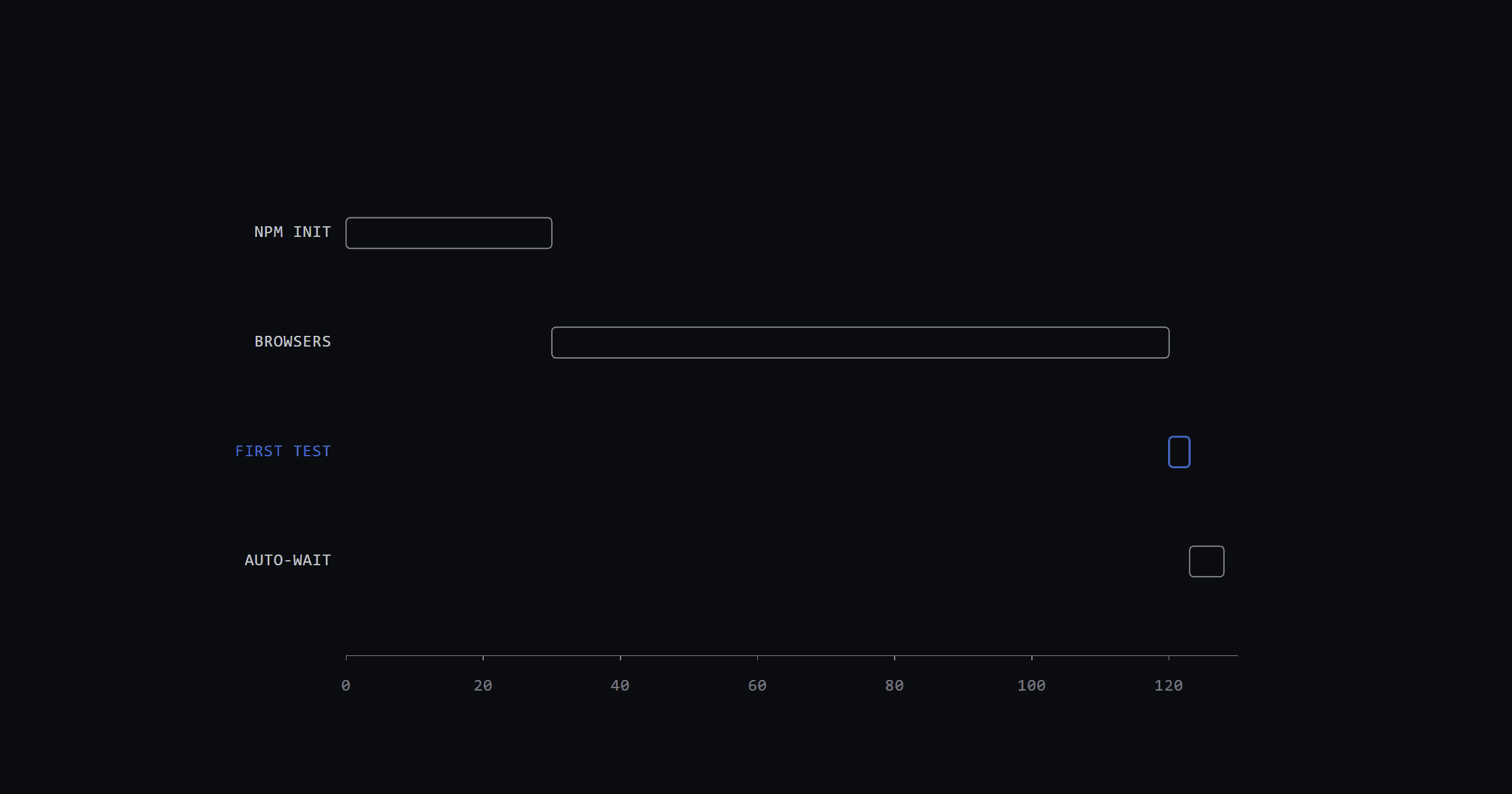
Playwright ships with TypeScript support out of the box. No Babel config, no separate compiler setup, no fiddling with tsconfig.json presets. Run one command, and you've got a working project with typed tests, auto-completion, and browser automation ready to go.
This tutorial walks through creating a Playwright project with TypeScript, writing a first test, running it, and setting up CI with GitHub Actions. By the end, you'll have a test suite that runs on every pull request.
Prerequisites: Node.js 20 or later and a terminal.
Key facts
Create the project
Run the Playwright initializer:
npm init playwright@latestThe setup wizard asks a few questions:
After it finishes, you'll have this structure:
my-project/
├── tests/
│   └── example.spec.ts
├── playwright.config.ts
├── package.json
└── .github/
    └── workflows/
        └── playwright.yml
The whole process takes about 30 seconds, plus browser download time.
Configure playwright.config.ts
Open playwright.config.ts. Here's what the important settings do:
import { defineConfig, devices } from '@playwright/test';

export default defineConfig({
  testDir: './tests',
  fullyParallel: true,
  forbidOnly: !!process.env.CI,
  retries: process.env.CI ? 2 : 0,
  workers: process.env.CI ? 1 : undefined,
  reporter: 'html',
  use: {
    baseURL: 'http://localhost:3000',
    trace: 'on-first-retry',
  },
  projects: [
    {
      name: 'chromium',
      use: { ...devices['Desktop Chrome'] },
    },
  ],
});
A few things worth noting:
For a real project, add a webServer block to start your app automatically before tests:
webServer: {
  command: 'npm run dev',
  url: 'http://localhost:3000',
  reuseExistingServer: !process.env.CI,
},
Write your first test
Replace the contents of tests/example.spec.ts:
import { test, expect } from '@playwright/test';

test('homepage has Playwright in title', async ({ page }) => {
  await page.goto('https://playwright.dev/');
  await expect(page).toHaveTitle(/Playwright/);
});

test('get started link navigates to installation page', async ({ page }) => {
  await page.goto('https://playwright.dev/');
  await page.getByRole('link', { name: 'Get started' }).click();
  await expect(page.getByRole('heading', { name: 'Installation' })).toBeVisible();
});
Two things stand out if you're coming from Selenium or Cypress:
No explicit waits. page.getByRole() and expect().toBeVisible() both auto-wait. Playwright retries assertions for up to 5 seconds by default. No Thread.sleep(), no cy.wait(), no WebDriverWait.
Role-based locators. getByRole('link', { name: 'Get started' }) finds elements the way a screen reader does. Tests stay resilient when CSS classes change, and they're accessible by design. Playwright's locators documentation covers the full API.
Run tests and view reports
Run the tests:
npx playwright testOutput looks like this:
Running 2 tests using 2 workers
  2 passed (3.2s)
Open the HTML report for detailed results:
npx playwright show-reportOther commands worth knowing:
# See the browser while tests run
npx playwright test --headed

# Interactive UI mode - step through tests visually
npx playwright test --ui

# Run a specific file
npx playwright test tests/example.spec.ts

# Generate test code by recording browser actions
npx playwright codegen https://playwright.dev
Try --ui early. It shows a live browser, step-by-step execution, and DOM snapshots in one window. It's the fastest way to understand what a test actually does.
Add CI with GitHub Actions
If you selected GitHub Actions during setup, you already have .github/workflows/playwright.yml:
name: Playwright Tests
on:
  push:
    branches: [ main, master ]
  pull_request:
    branches: [ main, master ]
jobs:
  test:
    timeout-minutes: 60
    runs-on: ubuntu-latest
    steps:
    - uses: actions/checkout@v5
    - uses: actions/setup-node@v5
      with:
        node-version: lts/*
    - name: Install dependencies
      run: npm ci
    - name: Install Playwright browsers
      run: npx playwright install --with-deps
    - name: Run Playwright tests
      run: npx playwright test
    - uses: actions/upload-artifact@v4
      if: ${{ !cancelled() }}
      with:
        name: playwright-report
        path: playwright-report/
        retention-days: 30
The --with-deps flag installs system-level libraries that Ubuntu images don't include. The upload-artifact step saves the HTML report so you can download it after the run. This workflow is the minimal version; How to Set Up GitHub Actions for Test Automation covers dependency caching, the browser matrix, and sharding for when the suite outgrows a single runner.
One tip: if you only need Chromium, install just that browser to speed things up:
npx playwright install chromium --with-depsThis cuts the browser install step from around 90 seconds to about 30.
Common issues
"browserType.launch: Executable doesn't exist"
Run npx playwright install to download browsers. This happens when you clone a repo and run npm install but skip the browser install step.
TypeScript type errors don't fail tests
Playwright doesn't type-check during execution. Add a separate step in CI:
npx tsc --noEmitThis catches type errors before they become runtime surprises.
Tests pass locally but fail in CI
Check for hardcoded URLs or ports. Use baseURL in the config and webServer to start your app automatically. Also confirm that retries is set for CI, since slower CI machines can cause timing-sensitive tests to fail on the first attempt. When the failure survives all of that, it's a genuine flake: Flaky Playwright Tests: Five Root Causes and Fixes works through the five causes auto-wait doesn't cover.
Missing await causes confusing failures
Every Playwright action is async. A missing await leads to race conditions that are painful to track down. Enable the @typescript-eslint/no-floating-promises ESLint rule to catch these at lint time.
Next steps
The project is set up and running in CI. From here, write tests against your own app. Start with the most critical user flow: login, checkout, or signup. Whatever breaks and costs the most time.
For more on locators and assertions, see Playwright's writing tests guide. The trace viewer documentation is also worth reading before you need it for the first time in a real CI failure.
If you haven't committed to a framework yet, Playwright vs Cypress vs Selenium: 2026 Edition compares the three on architecture and parallelism cost. Everything else Testland has written about this framework is collected under Playwright in CI, and the authoring and review workflows are packaged as installable skills in qa-web-e2e.